Quick Run of TUIRoomKit Demo for Android
中文 | English
This document describes how to quickly run the TUIRoomKit demo project to try out multi-person audio/video interactions. For more information on the TUIRoomKit component connection process, see Integrating TUIRoomKit (Android).
Directory Structure
Android
├─ app              // Main panel, which is the entry of the multi-person audio/video interaction scenario
├─ debug            // Debugging code
├─ timcommon        // Chat interface public components
├─ tuichat          // Chat interface components
└─ tuiroomkit       // Multi-person audio/video interaction business logic
Environment Requirements
- Compatibility with Android 4.4 (SDK API Level 19) or above is required. Android 5.0 (SDK API Level 21) or above is recommended
- Android Studio 3.5 or above
Demo Run Example
Step 1. Create a TRTC application
- Go to the Application management page in the TRTC console, click Create Application, enter an application name such as
TUIKitDemo, and then click Confirm. - Click Application Information on the right of the application as shown below:

- On the application information page, note down the
SDKAppIDand key as shown below: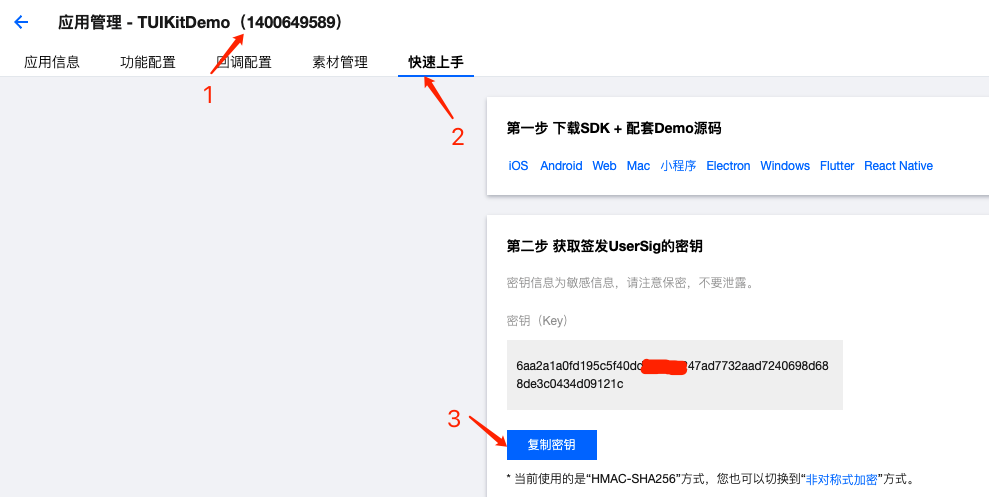
! This feature uses two basic PaaS services of Tencent Cloud: TRTC and IM. When you activate TRTC, IM will be activated automatically. IM is a value-added service.
Step 2. Download the source code and configure the project
-
Clone or directly download the source code in the repository. Feel free to star our project if you like it.
-
Find and open the
Android/debug/src/main/java/com/tencent/liteav/debug/GenerateTestUserSig.javafile. -
Set parameters in
GenerateTestUserSig.java: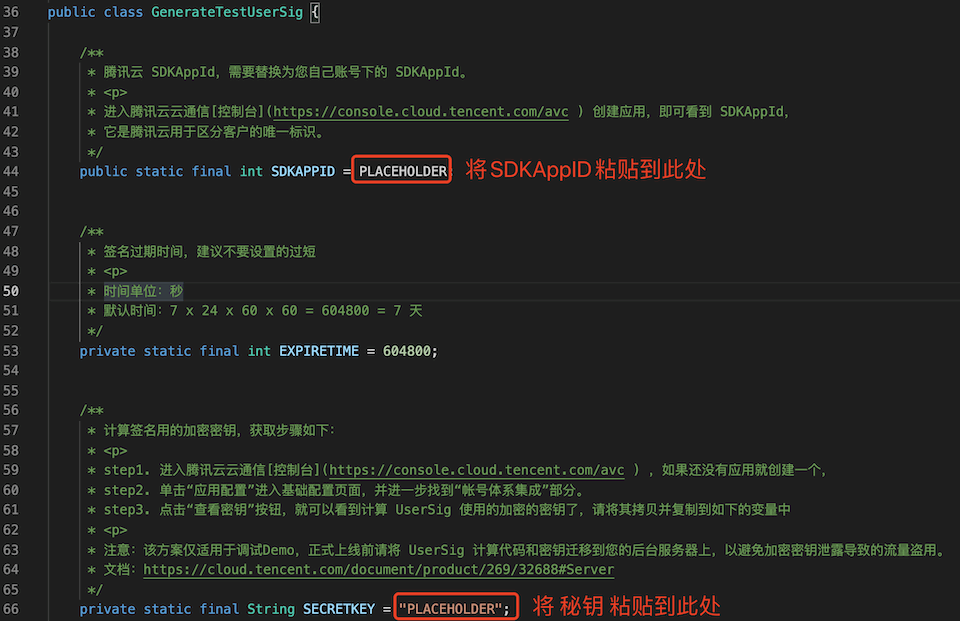
- SDKAppID: A placeholder by default. Set it to the
SDKAppIDthat you noted down in step 1. - SDKSecretKey: A placeholder by default. Set it to the key information that you noted down in step 1.
- SDKAppID: A placeholder by default. Set it to the
Step 3. Compile and run the application
You can open the source code directory TUIRoomKit/Android in Android Studio 3.5 or later, wait for the Android Studio project to be synced, connect to a real device, and click Run to try out the application.
Step 4. Try out the demo
Note: You need to prepare at least two devices to try out TUIRoomKit. Here, users A and B represent two different devices:
Device A (userId: 111)
- Step 1: On the welcome page, enter the username (which must be unique), such as
111. - Step 2: Click Create Room.
- Step 3: Enter the room creation page. Note down the ID of the newly created room.
- Step 4: Enter the room.
Device B (userId: 222)
- Step 1: Enter the username (which must be unique), such as
222. - Step 2: Click Enter Room and enter the ID of the room created by user A (the room ID that you noted down in step 3 on device A) to enter the room.
Have any questions?
Welcome to join our Telegram Group to communicate with our professional engineers! We are more than happy to hear from you~ Click to join: https://t.me/+EPk6TMZEZMM5OGY1 Or scan the QR code